
Tivimate IPTV player is a media player application that lets you watch live channels, VODs, live shows, movies, and series on your TV. You just need to add the IPTV subscription playlist to Tivimate and start watching.
Tivimate is the most famous IPTV player. Its paid version is the best IPTV player. Honestly, nothing even comes close to the Tivimate paid version. Its free version is average. If you are looking for the best free IPTV player, choose IPTV Smarters Pro.
If you are looking for a specific part to read about Tivimate, go to the table of contents and jump straight to your required part.
NOTE: Keep in mind.
- Tivimate is just a player and doesn’t contain pre-loaded channels, movies, or VODs. You need to buy an IPTV subscription to watch channels and VODs.
- Tivimate works only in the Android environment. If your device is not operating on the Android operating system, Tivimate will not work on your device.
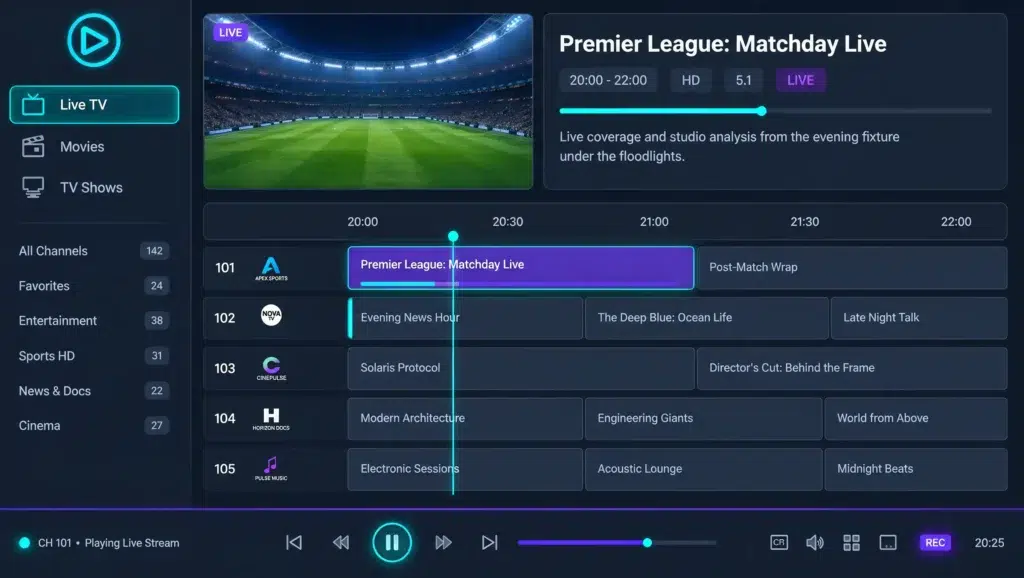
What is Tivimate IPTV player? Why is it the best IPTV player overall?
Tivimate is an IPTV player that lets you watch live channels and VODs from the IPTV playlist you add. It is just a player, and it doesn’t come with pre-loaded channels or streaming. You need to add a playlist to the player to watch content.
You can make your own playlist or buy an IPTV subscription. An IPTV subscription provider will give you a playlist link. Add the link to the player and watch the content. Creating an IPTV playlist is much harder. Buying a built-in IPTV playlist is the easiest and cheapest way to access content.
You can find free playlists on GitHub and some websites that provide free M3U URLs. These are mostly public channel lists. Most of these free URLs often get banned within 72 hours. The quality of these free streams is very bad. Often buffer and freeze during streaming.
Tivimate devices it supports and doesn’t support.
Tivimate IPTV player is not a universal IPTV player. It doesn’t work on all devices. It is specialized for Firestick and Android TV. It only works on devices that are running the Android operating system. The table will mention all the devices Tivimate supports and those it does not.
| Status | Device / Brand | Compatibility Details |
| 🟢 Supported | Amazon Fire TV (Stick, Cube, TV) | Fully compatible. Download via sideloading. |
| 🟢 Supported | Google TV / Android TV Boxes (Chromecast, Nvidia Shield, Xiaomi) | Fully compatible. Download directly from the Google Play Store. |
| 🟢 Supported | Android Smart TVs (Sony, TCL, Hisense, Philips) | Fully compatible if the TV runs built-in Google/Android software. |
| 🟡 Limited | Windows PC & Apple Mac | Works only by installing an Android emulator like BlueStacks. |
| 🔴 Unsupported | Samsung & LG Smart TVs | Not compatible. Uses Tizen/webOS. (Fix: Plug in a Firestick). |
| 🔴 Unsupported | Roku Devices (Sticks, Boxes, Roku TVs) | Completely blocked. No workaround available. |
| 🔴 Unsupported | Apple Devices (Apple TV, iPhone, iPad) | Not compatible. Uses iOS/tvOS. |
Difference between the paid and free Tivimate IPTV player versions.
Tivimate IPTV player has both free and paid tiers. Nothing comes close to the paid Tivimate player. It is the best. This opinion is not only based on Tivimate’s amazing hardware but also on user reviews and experience with the Tivimate player. We collect user reviews and experiences to make our clients’ IPTV experience much better. If you are comfortable, please mention your favorite player and your experience with the Tivimate player. Help us make the IPTV world better for all our users.
| Feature | 🆓 Free Version | 💎 Premium Version |
| Price | Completely Free | ~$10/year or ~$35 lifetime (5 devices) |
| Playlist Support | Limited to 1 playlist | Unlimited playlists |
| TV Guide (EPG) | Basic viewing | Auto-refresh & manual assignment |
| Favorites Management | View channels only | Organize, reorder, & customize groups |
| Catch-Up & Recording | ❌ No | ✅ Yes (Record live TV to local storage) |
| Multi-Screen Mode | ❌ No | ✅ Yes (Watch up to 4 channels at once) |
| Picture-in-Picture (PiP) | ❌ No | ✅ Yes (Watch while browsing other menus) |
| Custom Appearance | Default theme only | Change themes, fonts, & logos. |
| Channel Management | Cannot hide channels | Hide, lock, or block channels |
How to install and set up IPTV on Tivimate IPTV Player?
Setting up Tivimate has two simple steps. Visit our IPTV setup guide for a specific device. Download and install Tivimate and add a playlist to Tivimate. I’m going to explain both steps thoroughly.
How to download and install Tivimate IPTV Player on Android TV/Android devices.
- Go to the Play Store.
- Search for Tivimate
- Download the app and install it. That’s it.
How to download Tivimate on Firestick/Fire TV Cube (box).
Installation of Tivimate on Firestick is a little complex. You need to enable “Install from unknown sources.”
NOTE: Before jumping to the installation guide, you should know this.
- New 2026 models of Amazon Firestick or Fire TV Cube that have the Vega OS operating system have completely blocked IPTV players. Tivimate will not work on them.
- If your Firestick or Fire TV Cube (box) has the Fire OS operating system, then Tivimate will work on it.
This is the step-by-step installation guide for Tivimate on a Firestick or Fire TV Cube.
- Plug in the Firestick.
- Go to the app store of the Firestick and click on the search option.
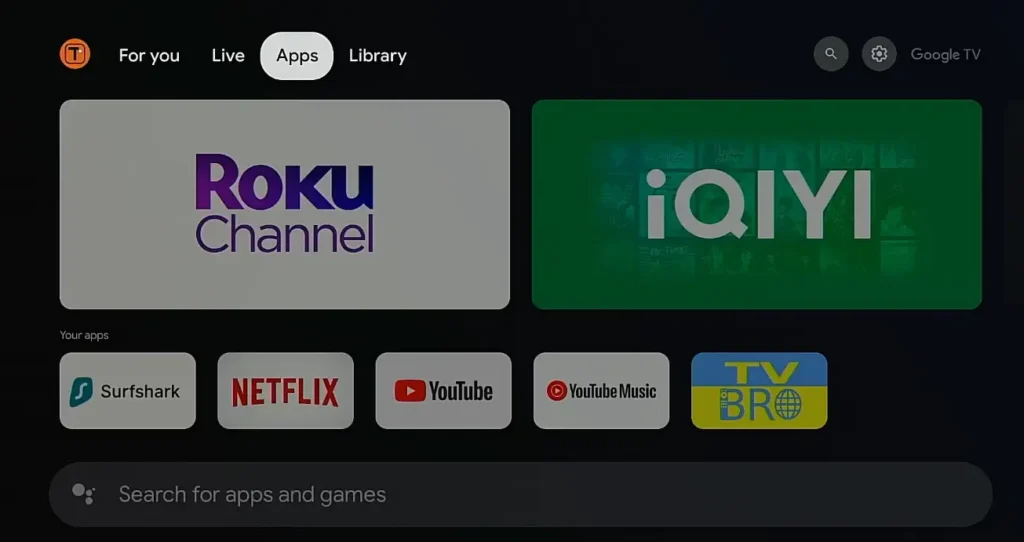
- Search for the downloader in the search bar and download the orange downloader. Downloader by AFT News.

- Open the settings of the Firestick.
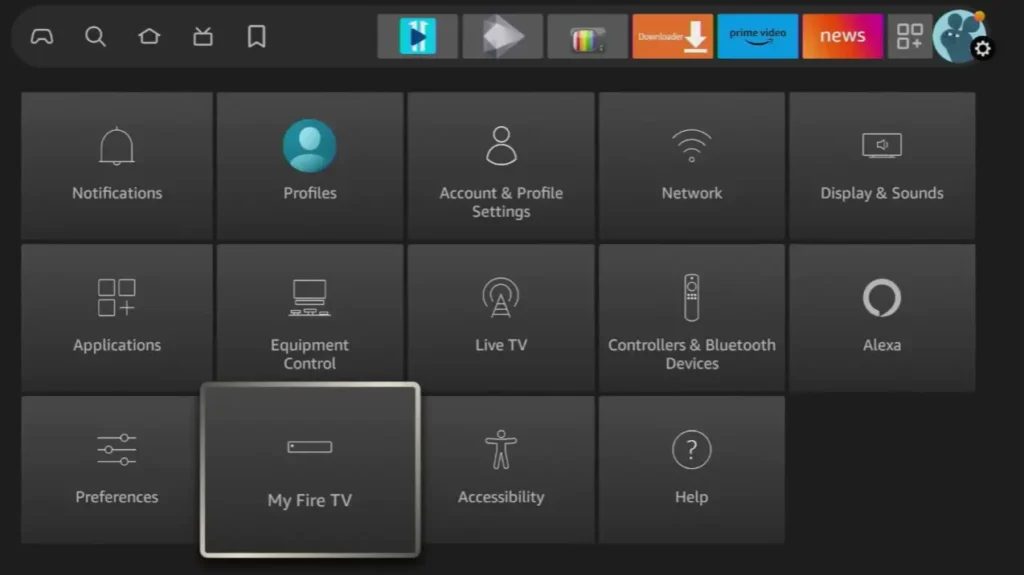
- Click on “About”
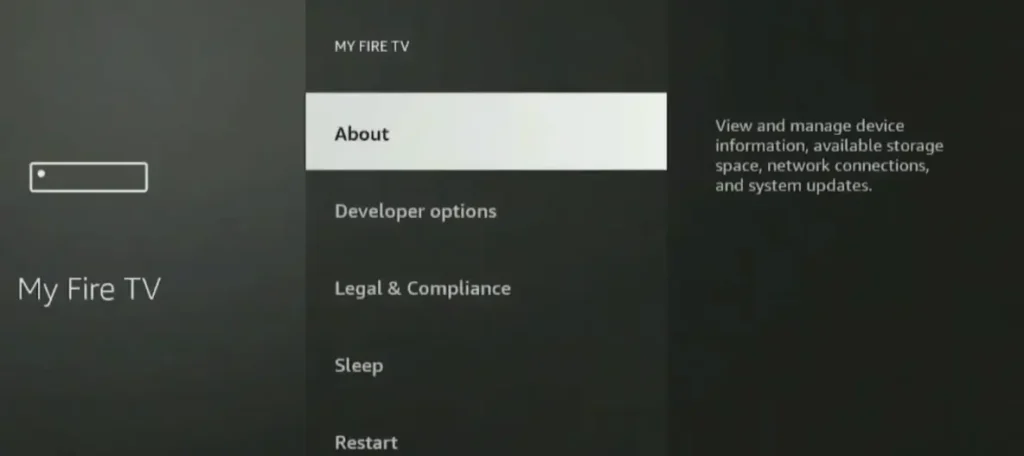
- Click on the name of your device, “My Fire Stick,” multiple times until it says that you are in developer mode. In most cases, 7 clicks enable Developer Mode.
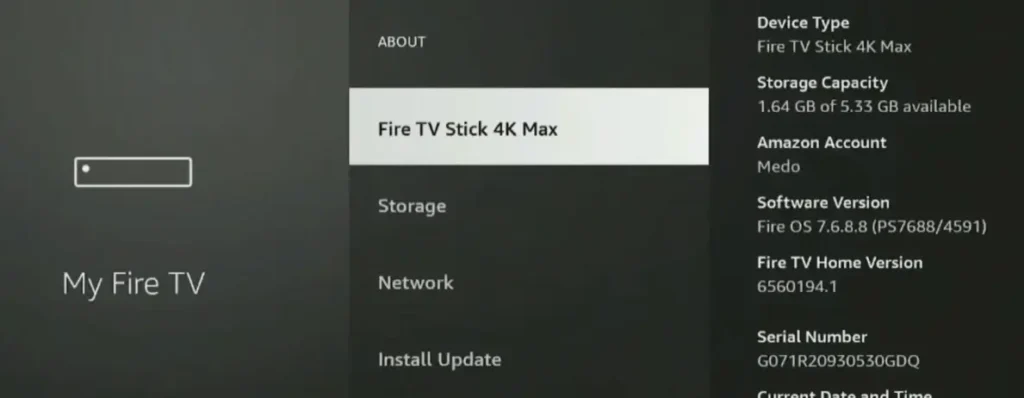
- Go back a step and click on “Developer mode.”
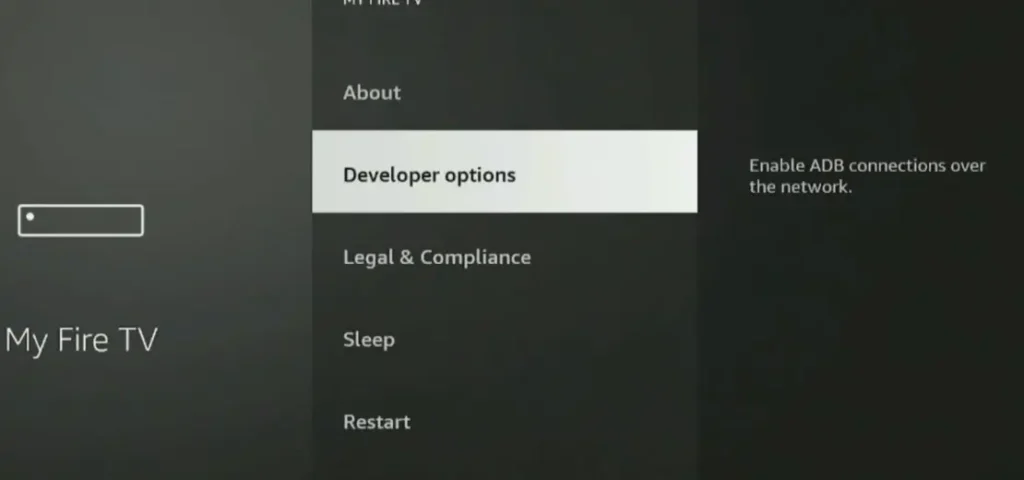
- Click on “Enable download from unknown sources.”
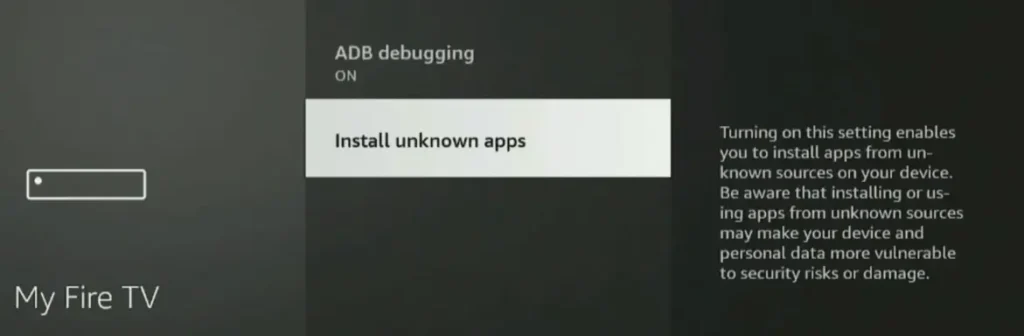
- Click on the “downloader” and enable it.
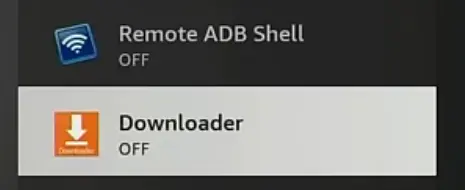
- Go back, open the downloader, and enter the code “272483” into the search bar and click on the Go
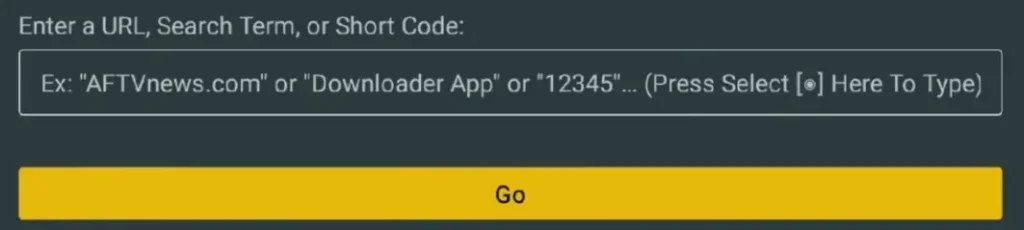
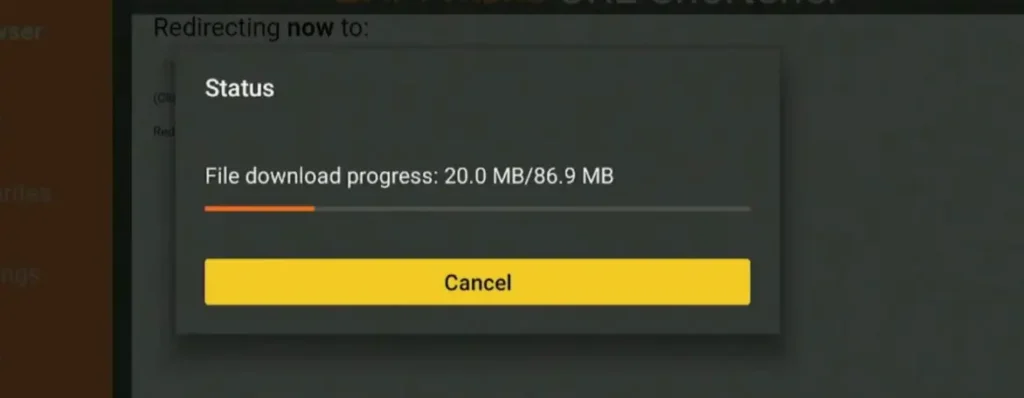
- Downloading will start automatically, and it will install.
How to add an IPTV playlist to the Tivimate IPTV player.
You can add a playlist to the Tivimate IPTV player in two ways.
- M3U URL Method 1: Yourself: You need to search for your player on Google. Open the official website of your player, click on the menu option, and search for “add playlist.” They’ll ask you for the MAC address and password. You can find the MAC address and password in your app. Log in, add the M3U URL, and save it. Restart your application, and it will take 2-3 minutes to load, and your playlist will be added.
- M3U URL Method 2: Your IPTV provider will add the playlist to your app. The second easiest method is to share your MAC address with your IPTV subscription provider, and he will add the playlist for you. You just need to restart the device.
- Xtream API: If you are given Xtream API credentials, you just need to add the username, password, and URL into the app and click Add, and you are all set.
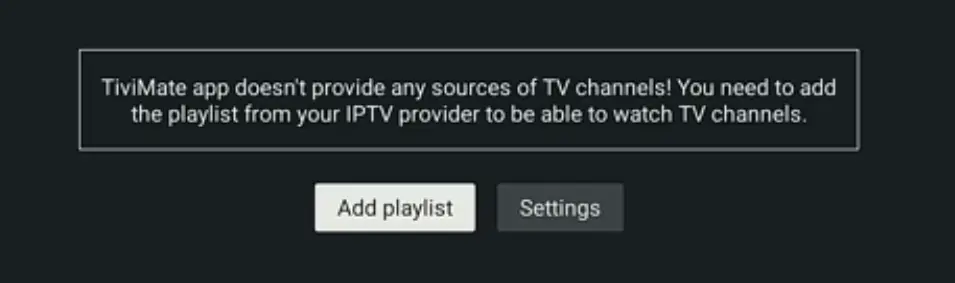
NOTE: You need to select the Xtream API login from the dashboard of your app.
How to record on Tivimate?
NOTE: The recording feature is only available in the paid version.
Follow the same steps as given below to setup recording on Tivimate IPTV player.
- Open Tivimate IPTV Player settings
- Go to Settings > Other > Recording.
- Select the Recordings folder > Select folder > System picker.
- Choose your connected USB drive or create a new directory inside it, then select Use this folder. Grant app permissions if prompted.
How to schedule recording for the upcoming event.
NOTE: The scheduled recording feature is only available in the paid version.
The recording or catch-up feature is best for you if you are a busy person and don’t want to miss a special live show or sports match. You can schedule recording and watch it later On paid Tivimate IPTV player.
Follow the steps given below as they are.
- Open the Tivimate IPTV player TV Guide (EPG).
- Highlight the program you want to record.
- Long-press the OK / Select button on your remote.
- Choose Record from the menu. A red dot will appear on the EPG to show the recording is active.
Best IPTV for Tivimate or best playlist for Tivimate (subscription).
The best IPTV subscription for Tivimate is our Premium plan. It includes all premium sports channels, VODs, live shows, PPV events, kids’ entertainment, and all the stuff you can find on TVs and OTTs. Give us a chance, and we guarantee that you’ll never regret it. Get a 24-hour free trial, read user reviews, then decide.
If you want to buy from someone else, then ask for an 8K strong IPTV server. It is the best IPTV server so far. They will ask you for another server, but they are in the mid-range.
How to get started with IPTV Experts.
You can get started with IPTV EXPERT in three simple steps.
Step 01
Visit our pricing plan and choose the plan that best suits you. Place the order. If you have any questions before placing the order, then contact our team, and they will guide you step by step. You can get a 24-hour free trial before placing an order to decide whether the subscription is best for you or not.
Step 02
Pay the bills. You’ll receive the payment details via email, or you can pay via WhatsApp. If you have any questions before payment, then contact us first. If you know nothing about IPTV subscription or setup, contact our team, and we’ll walk you through the steps.
Step 03
After paying the bills, you will receive the login details. Enter the login details into the Tivimate IPTV IPTV player, and you are done. Your playlist will be loaded, and you are ready to watch the content.
