IPTV is the fastest-growing streaming industry. Like everything else, streaming is shifting toward a seamless, portable, cable-free, wire-free experience. The Fire Stick is the best device available right now, not only for IPTV but also for all OTT platforms like Netflix, HBO, Amazon Prime, etc. IPTV on Firestick delivers a smooth experience that other devices rarely provide.
One critical issue right now is that IPTV is completely blocked in new Vega OS models of the Amazon Fire Stick. These are newer Fire Stick models. If you are buying a Fire Stick for IPTV, then choose a Fire OS (Android-based) model that still allows the installation of IPTV apps.
What is Fire Stick? Where to buy it?
The Amazon Fire Stick is a small, portable device that plugs into any standard HDMI port on your TV and converts it into a smart TV. Its main purpose is to convert a normal TV into a smart TV by connecting the TV to the internet using WiFi.
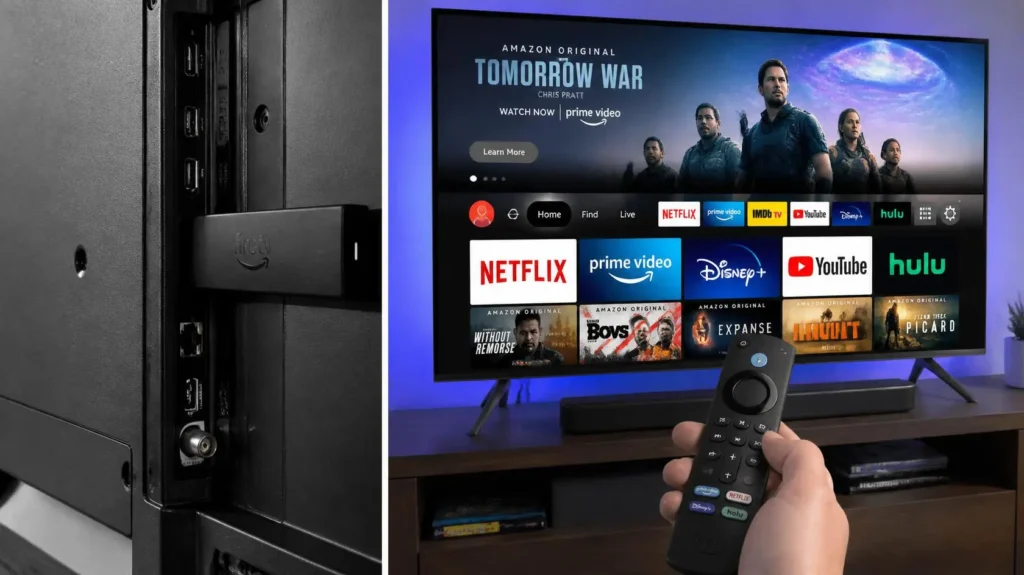
When you plug in a Fire TV Stick into any TV, it replaces the standard TV interface with the Amazon dashboard. You will get plenty of apps for streaming. All you need to do is install the downloader and download an IPTV player. Add a playlist and enjoy IPTV on your Fire Stick.
You can buy a Fire TV Stick on Amazon and also from nationwide retailers like Currys, Argos, and John Lewis.
Again, if you are buying a Fire Stick for IPTV to run IPTV on Firestick, buy a Fire OS model because IPTV players are blocked in the Vega OS model.
How to connect a Fire TV Stick to your smart TV.
If your TV has an HDMI port, you can plug the Fire Stick into it. The Amazon dashboard will appear on your TV. Open Settings and connect to the internet using the Fire Stick remote. The process is the same as connecting to WiFi on your mobile or laptop.
You can also use an HDMI extender to plug into a hard-to-reach port. Sometimes it comes with the Fire Stick. Otherwise, you need to buy it yourself. It is available at all Fire Stick seller shops, or you can simply buy it from any computer shop.
How Amazon Firestick works.
Once plugged in, Amazon Firestick gives you a dashboard from which you can access apps, live channels, OTT platforms, and VOD. You can connect to the internet via Wi-Fi. You can watch all content over a public internet connection. You don’t need an old dish, cable, or any kind of wire. Streaming is smooth and reliable. Quality depends solely on internet connection speed.
How to install IPTV on Firestick
IPTV (Internet Protocol Television) for Firestick delivers content on your local internet connection instead of a dish, cable, or antenna. Unlike OTT, it delivers content on a secure IP (Internet Protocol) connection. You don’t need a VPN for security or any reason because it is already secure. If you want to know how complete IPTV works, read our article what is IPTV.
There are three steps for setting up IPTV on Firestick.
Downloader installation in the Firestick to download the IPTV player.
Go to the search icon on your Firestick and search for the downloader. Download the orange-colored downloader by AFT News and install it. It is the best and easiest-to-use downloader. This is it; your first step for the setup of IPTV on firestick is done.
Player installation on Firestick
For setting up IPTV on Firestick player installation is the second step. You need to enable developer mode to allow the installation of apps form unknow source. This is easy; no rocket science. Just follow the steps given below, and you are done.
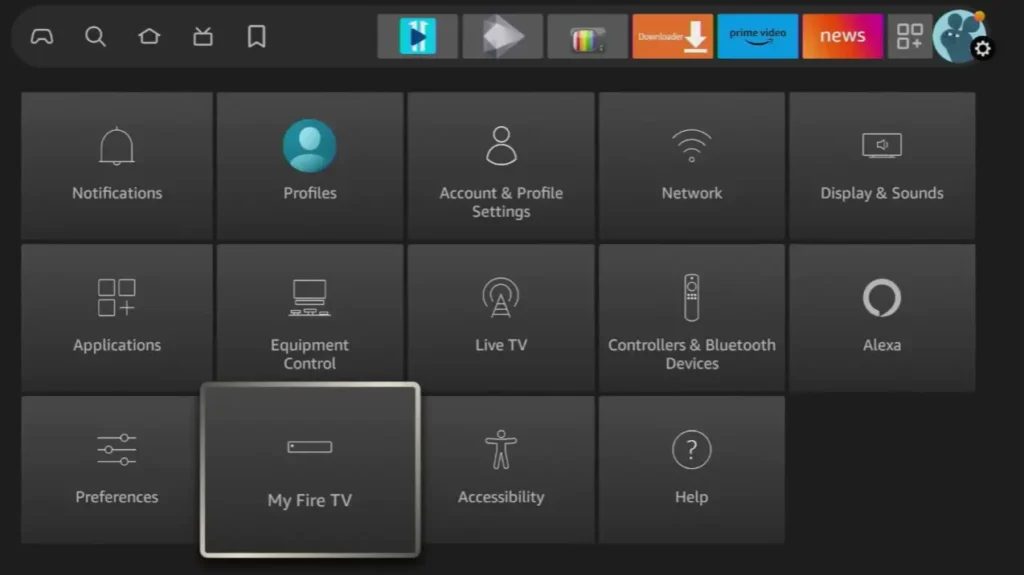
- Go to Settings and click the “My Fire TV” option from the list.
- Click on “About”.
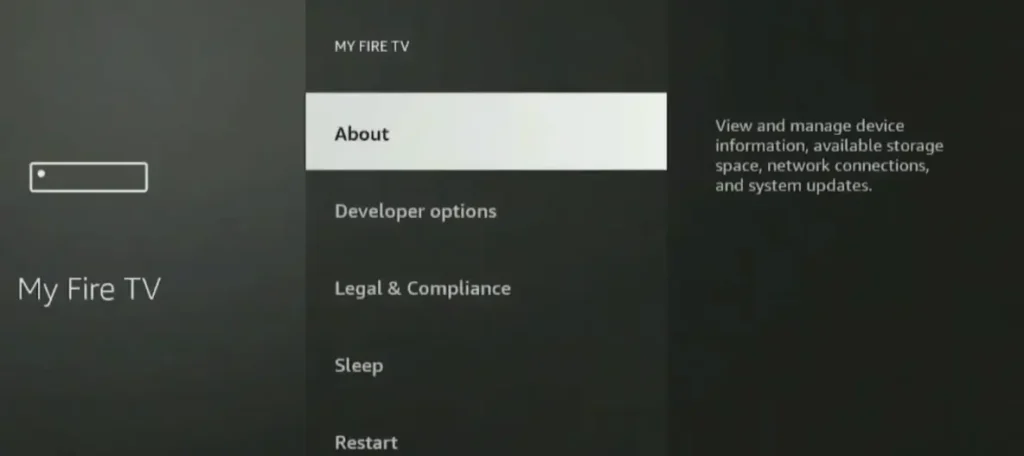
- Then click on “Device name” several times until it says, “You are already in developer mode.” Most of the time, you need to click 7 times, and a notification appears after 7 clicks.
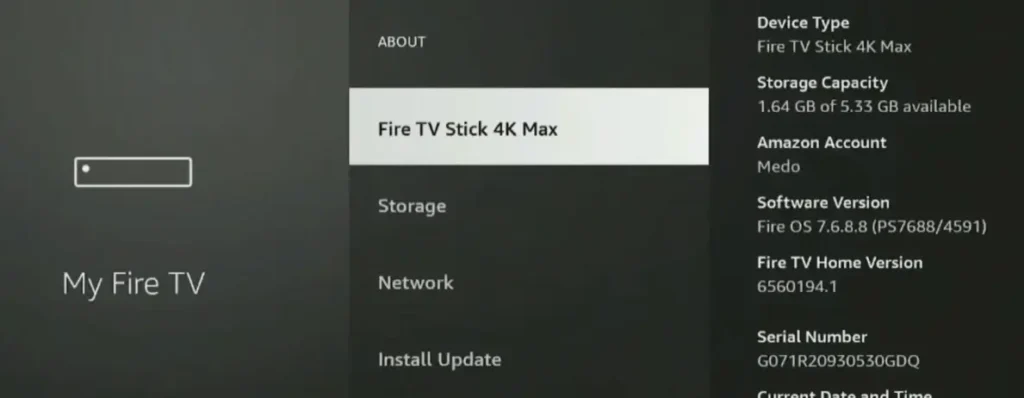
- Go back on step and click on “Developer option”
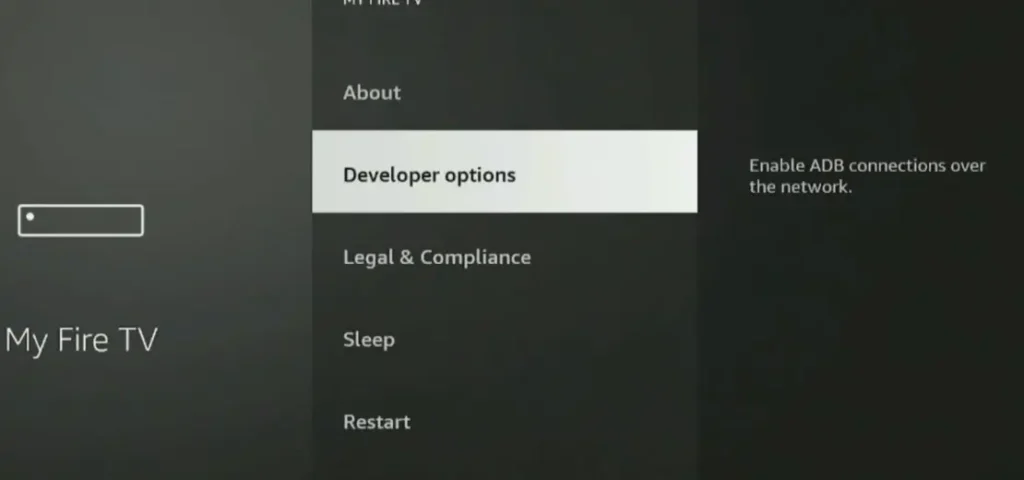
- Click on “Allow installation from an unknown source” and allow it.
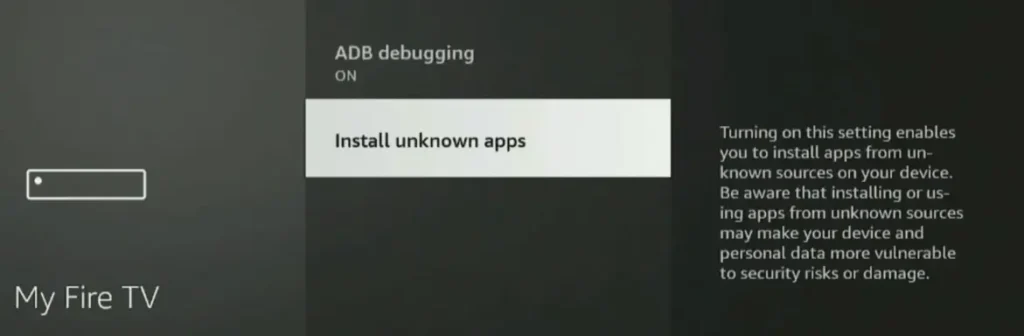
- Then go back, open the downloader.

- Type the name of the player in the search box of the downloader or enter the installation code for the player.
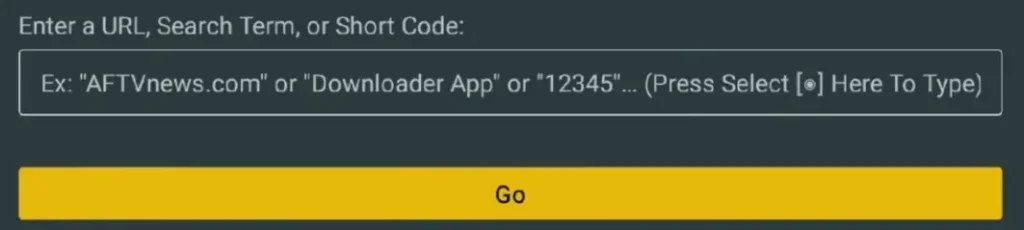
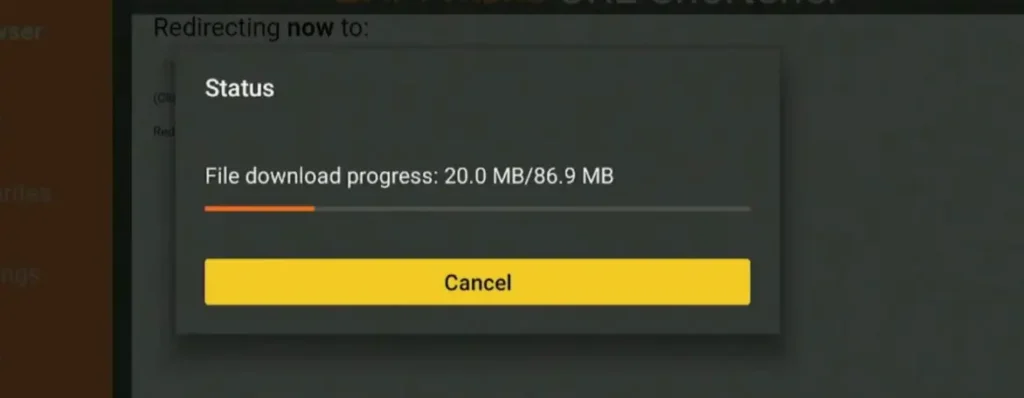
Every player has a specific installation code. Most of the time, your IPTV service provider will give you a code for the installation of the app.
Players: Download & install in the easiest way (through download codes)
Just open the downloader, add your favorite IPTV player code in the search bar, and click GO. Your app download will start automatically. If you want to install and setup IPTV Smarters pro then read this whole article on IPTV Smarters pro. This is the easiest method for installation of player for IPTV on Firestick.
- 8K Pro: 3157189
- 4K Cloud: 292384
- Tiviate 8K PRO: 3410676
- Tivimate: 272483
- IPTV Smarters Pro: 164547 OR 80911
- B1G: 5060514 OR 5637737
- B1G Sky: 170788
- Sky Glass: 4907292
- Sky Glass Infinity: 9042636
- Golden OTT / Magnum OTT: 2257663
- IBO Player: 481220
- G TV: 8239629
- Zum TV: 7997525
Best Players for IPTV on Firestick
Right now, hundreds of players are available. Some are paid, and some are free.
- Best Paid Player: IBO player, Bob player, Duplex IPTV.
- Best free player: 4K Cloud, Sky Glass, 8K Pro, IPTV Smarters Pro, B1G.
In the free category, 4K Player, Sky Glass, and Smarters Pro are the best choices for IPTV streaming. The interface is familiar and easy to use.
Adding User Credentials for the playlist For IPTV on Firestick.
You will be give M3U URL or Xtream API credential to add playlist to complete the IPTV on Firestick setup.
If you are given the M3U URL option, then the easiest method is to.
- Send a screenshot of your Player Mac address to your IPTV subscription provider. They will add a playlist for you. You just need to restart your device and open the app; it will load for 2-3 minutes, and your playlist will be downloaded.
If you are given the Xtream API option, then your provider will give you your IPTV login credentials. It includes these things.
- UserName
- Password
- Link
- Just add these credentials and click Add.
It will load for 2-3 minutes. Your playlist will be loaded.
After adding the playlist, you will have options like
- Live TV
- Sports
- VOD
IPTV on Firestick is don. That’s it.
Best IPTV subscription for Fire Stick and where to get it.
The best IPTV subscription for Firestick is our premium bundle. You’ll get HD, 4K, and 8K quality. 70K+ live channels. All premium sports channels. Live PPV events. 200K+ VOD. Visit our pricing plan, select your subscription, and pay the bill; you will get your username and password instantly.
If you ever get stuck at any point, you can contact us on the given WhatsApp number. Our support team is here for you 24/7. We’ll walk you through every single step.
To buy IPTV subscription for your firestick visit our pricing plan of IPTVEXPERT.
How to fix IPTV Buffering on Firestick
The most common issue with the IPTV on Firestick is buffering. The main cause of buffering is not the Firestick itself. The most likely causes are the internet connection, the providing server, app cache, and app or player issues. The most effective solutions are given below.
- Restart your device and router.
- Clear App cache
- If your internet speed is under 20 Mbps, lower the quality from 4k to 1080p or HD.
- If you have more than 20 Mbps internet speed, then use an Ethernet cable to stabilize the internet connection.
- If you are using a VPN, then switch to a server or close the VPN.
- If the issue is persistent after trying all the provided options, change your IPTV subscription. This is due to the provider’s server, and it is not going to be solved by any method you try to solve the problem.
Don’t try tore apart firestick to fix the buffering of IPTV on Firestick unless you are technician or repairing expert. Most of the time the issue is external not internal. If internal issue ever happened then go to the expert don’t try to fix it yourself.
IPTV On Firestick Performance Improvement Tips
The following things can enhance performance of IPTV on Firestick .
- Storage cleaning: Clear cache, delete unused apps, and clear APK files of the installed apps. Uninstall preinstalled apps that are never going to be used.
- Heat, a real performance issue: The most underrated issue is heat. The Fire Stick is always behind the TV, with no airflow and often touching the panel, which overheats the Fire Stick. Then Fire OS throttles the CPU to protect it, and performance drops drastically.
So use an HDMI extender to maintain airflow to the Fire Stick. - Turn off auto-updates: Turn off auto-updates for apps because it can restart the Fire Stick mid-run
- Match the display refresh rate.
- Use an Ethernet cable.
- Don’t use cleaner or booster apps, modded APK players, or jailbroken sticks because they can contain malware and spying devices inside.
- Don’t use a VPN for performance because the IPTV contains a built-in VPN. It can make your performance worse instead of improving it.
Step-by-step: Getting started with IPTV Expert
You can get started in three simple steps. Just follow the steps to set up IPTV on Firestick.
Step 1
Buy the IPTV subscription plan that better suits you. Visit our pricing plan. It starts at £8 per month only. If you want to test it first, then claim your 24-hour free trial.
Step 2
Pay the bills and get your IPTV credentials instantly. If you have a problem setting it up, then visit our IPTV setup page or connect us, and we will help you from start to end.
Step 3
Get your login details, add them to your IPTV player, and you are all set.
