
Setting up IPTV on a smart TV is much easier. You just need to download an IPTV player from the App Store on your smart TV and add a playlist. No rocket science in setting up IPTV on a smart TV. You can download IPTV player apps from the app store of your smart TV. It’s the same as downloading any app on your smartphone from the Play Store. You can buy IPTV UK Subscription if you need one from us. Give us a chance and you will never regret it.
But there is one thing you need to know. Not all smart TVs support it. IPTV apps have been completely banned. You can connect an external device to download and install IPTV apps on your unsupported smart TVs. You can buy an Amazon Fire Stick, an Android box, a Mag Box, or a Formular or Dreamer box. You can just connect this external device to your smart TV, and it’ll let you download IPTV players to your smart TV. IF you wanna know about IPTV then visit our this article on IPTV.
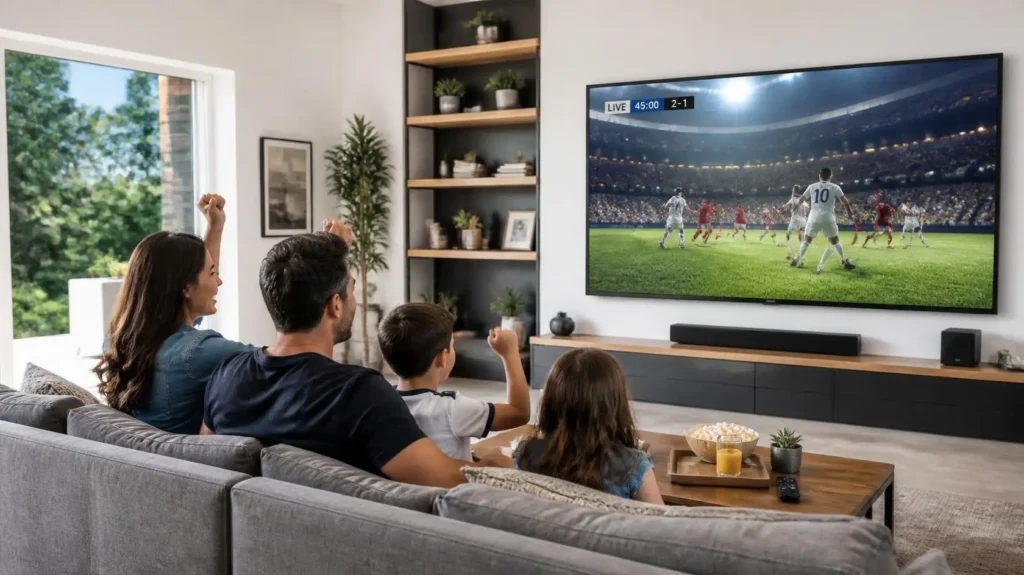
What is a smart TV? Which devices support an IPTV player and which don’t? A complete list and version details.
A smart TV is an old traditional television that has the capability to connect to the internet and has an operating system, which lets you stream videos, run apps, and browse the web directly on the TV screen.
Think of it like a laptop or a computer; you connect to the internet, open browsers, and browse the web. You can add apps, run apps, and watch videos. The difference is that it is only a smart TV with a built-in operating system inside it. On a computer, you need to connect it to the monitor because the computer has an operating system, and you need to connect it to an external LCD to access the display.
Smart TV versions that support IPTV players
There are many smart TVs that support IPTV players. You can download the IPTV application from their app stores and add a playlist to them. We are going to discuss all of them briefly. All other smart TVs don’t support IPTV players at all. Some support it partially, and I’m going to mention them below as well.
Samsung (Tizen OS)
Samsung TV requires Tizen OS 3.0 or a higher version to fully support all kinds of IPTV apps. Here is the table where you can see the versions of Samsung and their support.
| TV Model Year | Tizen OS Version | IPTV Support Status |
| 2024 – 2026 | Tizen 8.0 / 9.0 / 10.0 | 🟢 Fully Supported (Fastest performance, latest app versions) |
| 2021 – 2023 | Tizen 6.0 / 6.5 / 7.0 | 🟢 Fully Supported (Most premium apps available) |
| 2017 – 2020 | Tizen 3.0 / 4.0 / 5.0 / 5.5 | 🟡 Partially Supported (Basic apps work, but UI can feel slow) |
| 2016 & Older | Tizen 2.4 & Legacy Orsay | 🔴 Unsupported (App Store is outdated/deprecated) |
LG Smart TV (Web OS).
LG Smart TV Web OS 3.5 or higher models support all kinds of IPTV players. You can analyze all versions in the given table.
| TV Model Year | WebOS Version | IPTV Support Status |
| 2024 – 2026 | webOS 24 / 25 / 26 | 🟢 Fully Supported (Optimized for LG Magic Remote) |
| 2022 – 2023 | webOS 22 / webOS 23 | 🟢 Fully Supported (Full app marketplace access) |
| 2017 – 2021 | webOS 3.5 to webOS 6.0 | 🟢 Fully Supported (Stable access to primary players) |
| 2016 & Older | webOS 1.0 to 3.0 & NetCast | 🔴 Unsupported (Modern IPTV apps no longer run) |
Sony TV running on Android OR Google TV operating system
Sony TVs that are running on the Android TV or Google TV operating system have direct access to the Play Store, and you can download and install apps directly. You can see the table of Sony TVs below.
| TV Model Era | Operating System | IPTV Support Status |
| 2015 – 2026 | Android TV / Google TV | 🟢 Fully Supported (Full app marketplace access) |
| 2014 & Older | Legacy Sony Linux / Opera TV | 🔴 Unsupported (Custom browser interface with zero app downloading capabilities) |
Smart TVs that partially support IPTV.
- 📺 Hisense Smart TVs (VIDAA OS): 2022-2026 models VIDAA U6 / U7 / U8 & v7.0/8.0 support only basic apps like Smart One IPT or SS IPTV.
- 📺 Sharp Smart TVs (Aquos Net+ Platform) 2019-25: Only support Smart One IPTV or SS IPTV in European builds, and they are highly unstable
Smart TVs that don’t support IPTV apps at all.
- Roku TVs, Hisense, Sharp, Bush, and RCA (Roku OS)
- Panasonic Smart TVs (My Home Screen OS)
- UK Store Brands, Bush, Cello, Digihome (Basic Linux / TiVo OS)
- Toshiba Smart TVs (TRU Smart / Linux Platform)
- JVC & Bush Smart TVs (TiVo OS)
- Cello Smart TVs (SmartTV Platform)
Smart TVs that don’t support the IPTV Player Solution.
Smart TVs that do not support IPTV apps (players) have the simplest, cheapest, and easiest solution. Add an external device that can connect to your Smart TV via the HDMI port. Just plug that external device into your Smart TV and access IPTV players without any restrictions.
The list of external devices is given below.
- Amazon Fire Stick: Buy the Fire OS model because the Vega OS model doesn’t support IPTV players. If you want to explore more about Firestick, set up the Firestick, and then visit our Firestick article.
- Android Box: Best of all of them because support all IPTV apps.
- Formuler or Dreamer:
- Chromocast
- Mi Stick
- Mag Box
NOTE: Now the best of them is the Android box because it has no restrictions on any IPTV players.
Earlier, Amazon Firestick was not only the best but also great, but now they have totally banned IPTV players in their newer Vega OS version.
Step-by-step IPTV TV setup guide on a smart TV: Downloading, installation, and playlist adding.
IPTV on a smart TV needs two things.
- IPTV player installed on the smart TV
- An IPTV subscription from a legit provider. You can visit IPTVEXPERT to buy a reliable and trusted IPTV subscription.
You can then add the playlist in the installed app of IPTV using the M3U URL or Xtream API. Your IPTV service provider will give you one of them.
Download and install the player on Samsung and LG.
- Press the Home button on the remote, then open the App Store or LG Content Store.
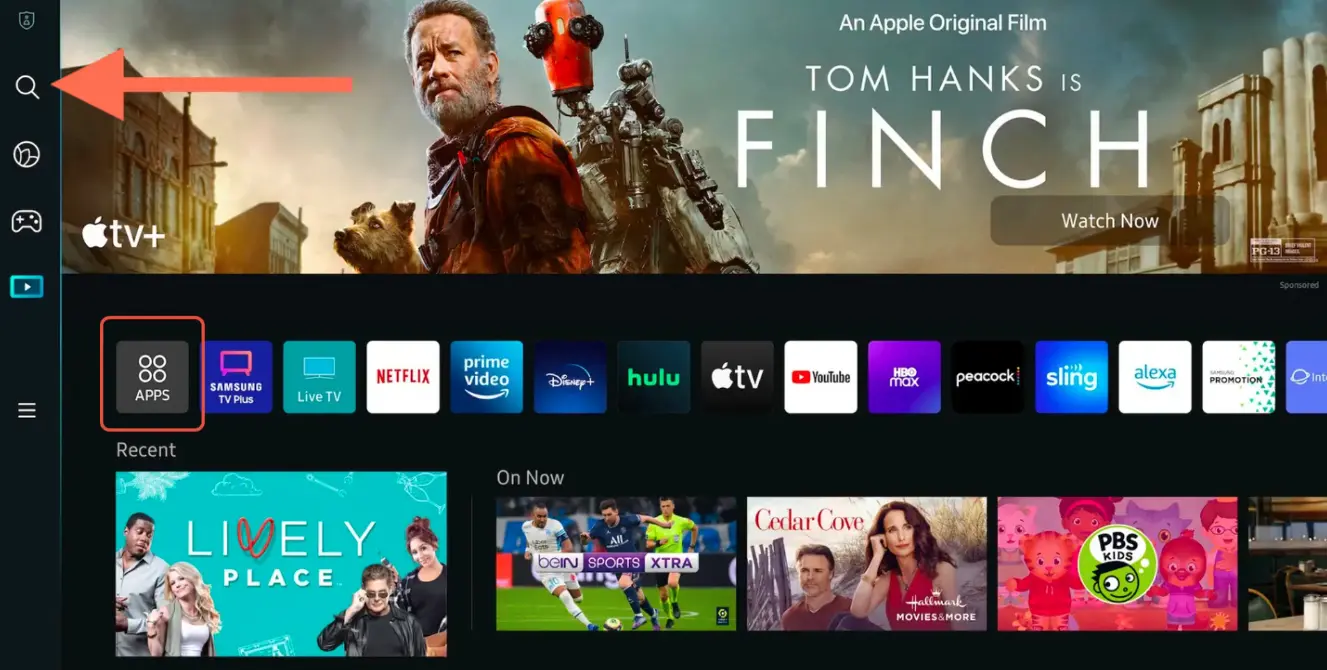
- Search for your favorite IPTV player
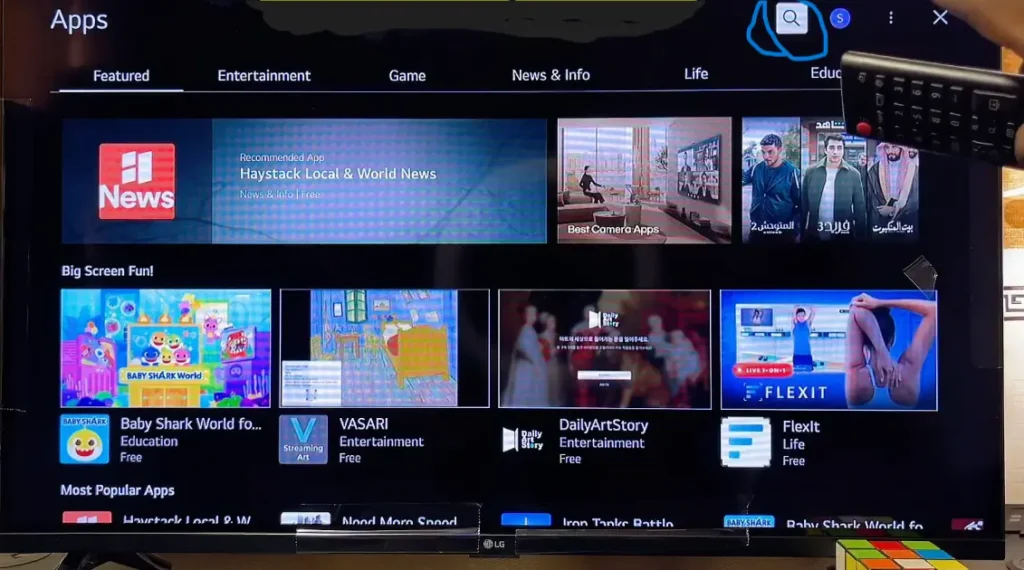
- Download and install it.
That’s it. This is all you need to do to install and download the app.
Downloading IPTV players on Sony Android TV or Google TV
- Simply go to the Play Store and download your favorite IPTV player application
- Install it like you install any app on an Android tablet, mobile, or laptop.
Downloading IPTV players on Hisense Smart TV and Sharp Smart TV.
- Go to the Hisense VIDAA app store or the Sharp Smart TV app store.
- Download and install your favorite IPTV player app.
List of favorite IPTV players for Smart TVs.
- 8K Pro
- 4K Cloud
- Tiviate 8K PRO
- Tivimate
- IPTV Smarters Pro: If you wanna know and setup IPTV smarter pro on you smart TV then read our full guide on IPTV samrter pro.
- B1G
- B1G Sky
- Sky Glass
- Sky Glass Infinity
- Golden OTT / Magnum OTT
- IBO Player
- G TV
- Zum TV
IPTV on a Smart TV: Adding a Playlist in Players
- Choose the option to add an M3U URL or Xtream API. Your IPTV service provider will give you either an M3U URL or Xtream API
- Add your credentials in the app, and you are ready to go.
- For the M3U URL, give your MAC address number or a screenshot to the provider, and he will add the URL for you. You just need to restart the device. Open the app, and it will load for 2-3 minutes, and your playlist will be added
- He will give you a link, username, and password for the Xtream API, and you can add it.
IPTV Troubleshooting on Smart TV
If your IPTV is buffering or stuttering, then
- Restart your smart TV and internet router.
- Clear the cache of your player.
- If you are using a Firestick or an external box, then make sure it doesn’t overheat because of it. If it overheats, your video will stutter.
- Check internet speed. If internet speed is lower, then lower your picture quality.
- Use an Ethernet cable if possible because it stabilizes the internet.
- If the issue is persistent after all of this troubleshooting, then change your subscription because it is a subscription provider server issue.
Step-by-step getting started with IPTV Expert
You can get started in three simple steps
Step 1
Buy the IPTV subscription plan that better suits you. Visit our pricing plan. It starts at £8 per month only. If you want to test it first, then claim your 24-hour free trial.
Step 2
Pay the bills and get your IPTV credentials instantly. If you have a problem in setting up, then visit our IPTV setup page or connect us, and we will help you from start to end.
Step 3
Get your login details, add them to your IPTV player, and you are all set.
